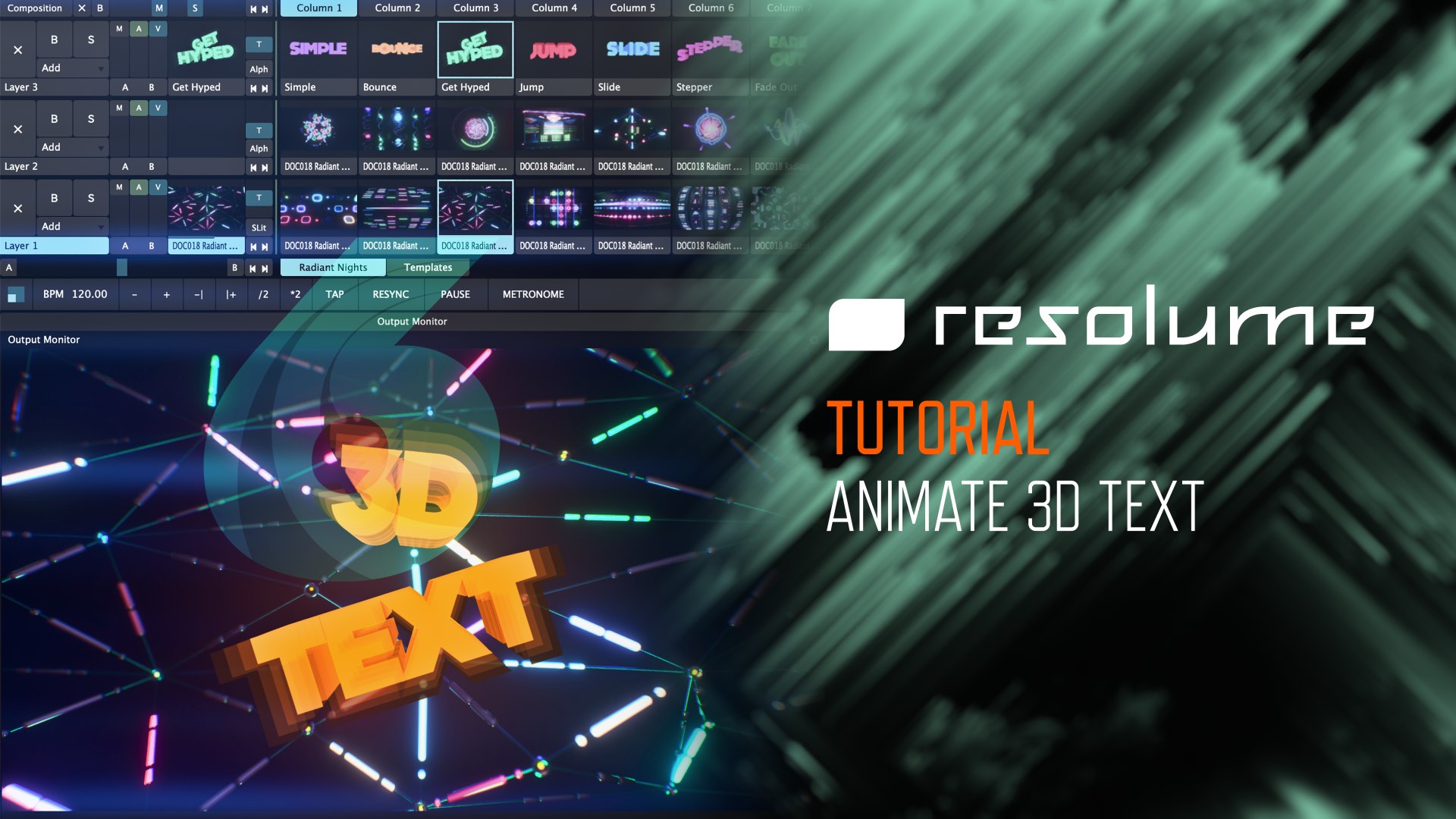
We share some techniques to make your text stand out in this new Resolume tutorial for Arena and Avenue 6! Learn how to use the built-in sources and effects to create customizable text clips to use in your compositions. We’ve also included a free download of the composition used in the tutorial! 11 text clips you can use right away in your events and performances.
Resolume 6 Tutorial: Animate 3D Text
This Resolume tutorial shows you how to create 3D text in Arena and Avenue 6 using built-in sources and effects. By using the Text Animator source along with Linear Cloner effect, you can add additional depth to your existing text for use in your events, projects, and performances. We explain how the various Text Animator parameters work so you have a better understanding of how to use them to make text animate dynamically and loop endlessly.
The text clips created in this tutorial are available as a Resolume 6 composition, free to download:
↓ Download the custom 3D Text Clips (Composition) in this tutorial:
The font used in this tutorial is available on Dafont.com:
Dock11 at Dafont.com
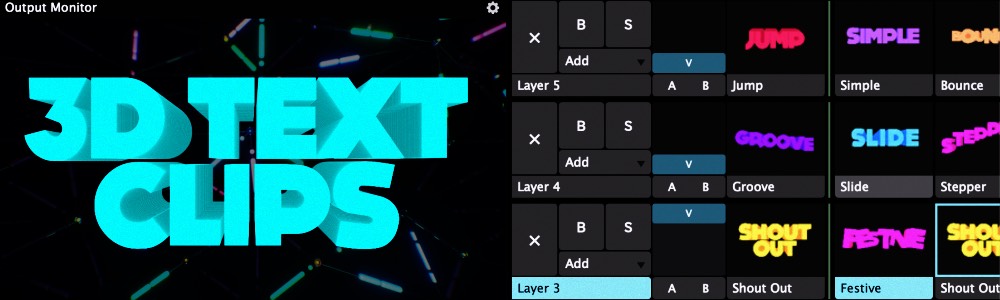
Resolume 6 Preset – 3D Text Clips
11 animated, custom 3D text clips for Resolume 6 created by the DocOptic team. These Resolume text presets were made using a technique to fake 3D depth with the Linear Cloner effect. Since these were made with Resolume built-in sources, they are fully customizable and editable. This composition is compatible with Resolume Arena and Avenue version 6.1.3 and above. To learn how to create 3D text in Resolume, see our tutorial: Resolume 6 Tutorial: Animate 3D Text.
↓ Download DocOptic 3D Text Clips Composition for Resolume Arena & Avenue 6


